HELP CENTER
How to use Onword
Everything from your first practice run to presenting on a projector. Short on time? Read Getting started and you're ready.
Getting started
- Add your slides. Open the app in Google Chrome or Microsoft Edge and drop in a PowerPoint, PDF or Canva download. No slides yet? Press Try it with a sample deck.
- Check the points. For each slide you'll see the things you plan to say. The app moves on only after you've said all of them, so make them match your real talk.
- Test your microphone. Press "Test my microphone", allow it, and say "hello, can you hear me?"
- Practice. Press "Practice run" and give your talk out loud. If it moves too early, say "go back" and it learns to wait longer on that slide. To make it faster or slower everywhere, open Settings.
- Present. Press "Present for real". A clean slides window opens for the projector, and your points and timer stay on your laptop.
Getting your slides in
| Made in | What to do |
|---|---|
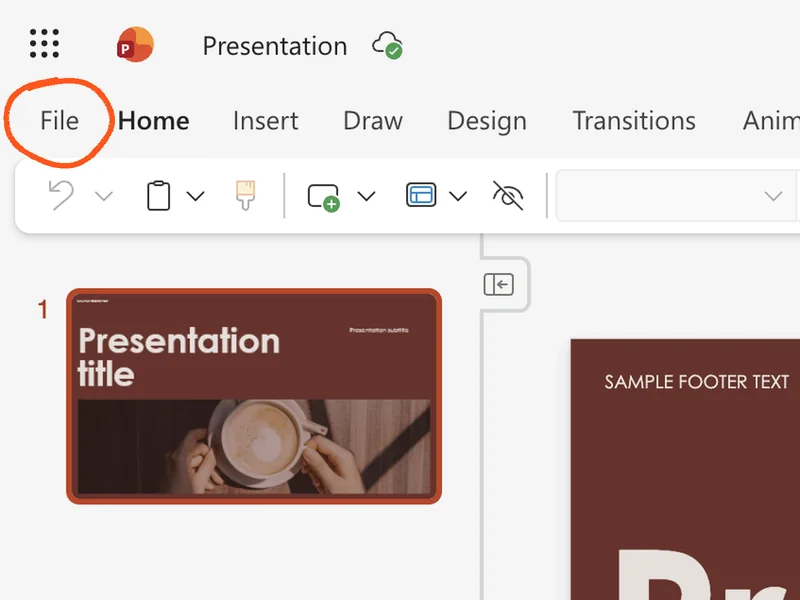
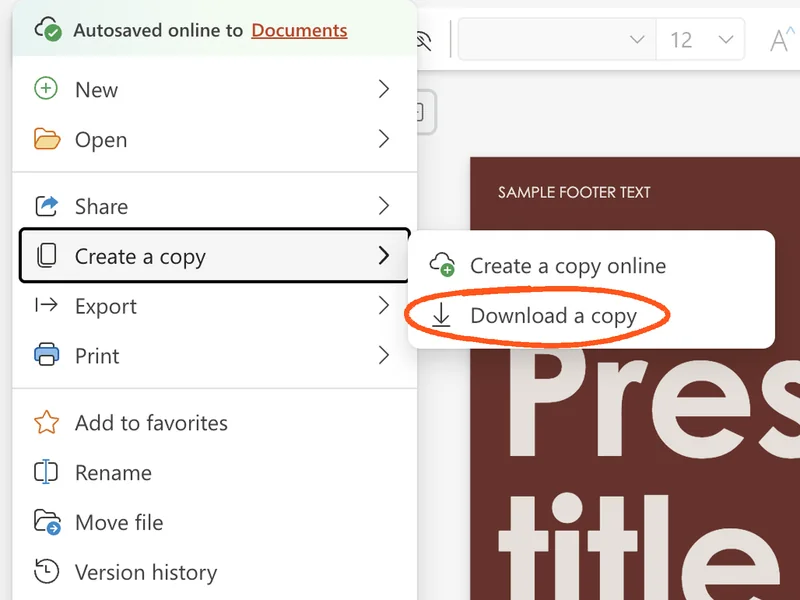
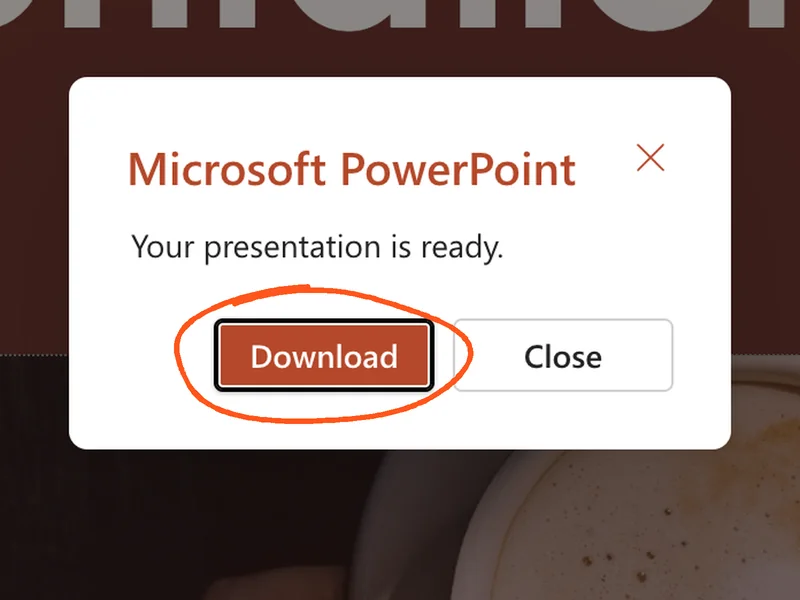
| PowerPoint | Drop the .pptx file in. Your design, animations and transitions come with it, and your speaker notes become the points. In PowerPoint online, press File, then Create a copy, then Download a copy. |
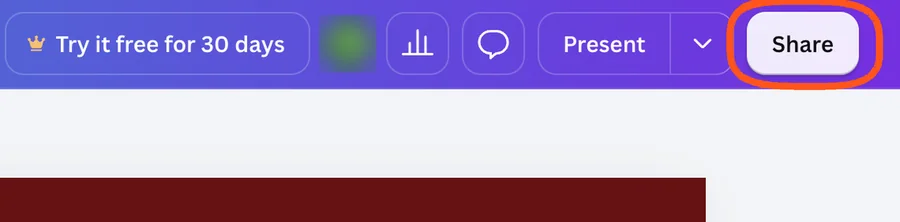
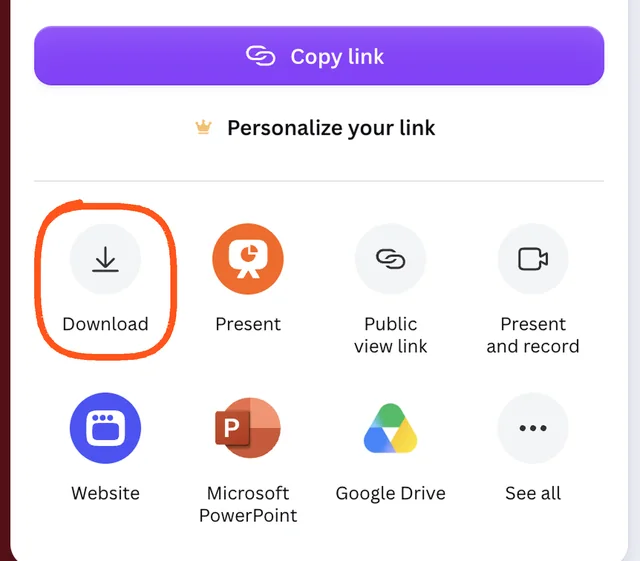
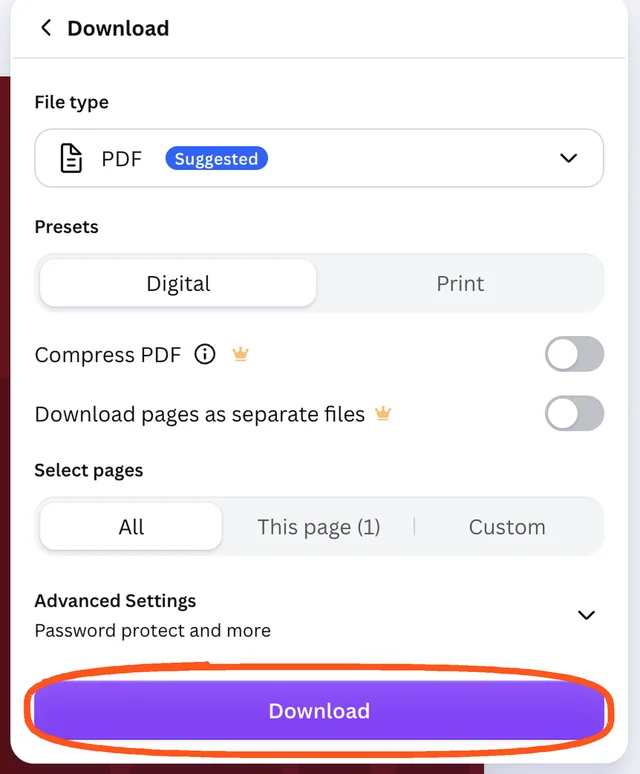
| Canva | Share, then Download, keep PDF, then Download. Wrote notes in Canva? Choose Microsoft PowerPoint instead, and your notes come in too. |
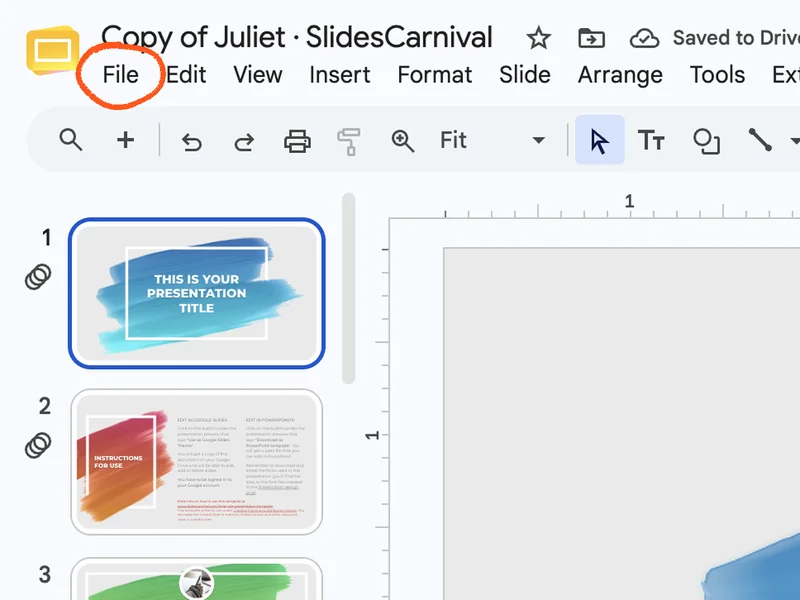
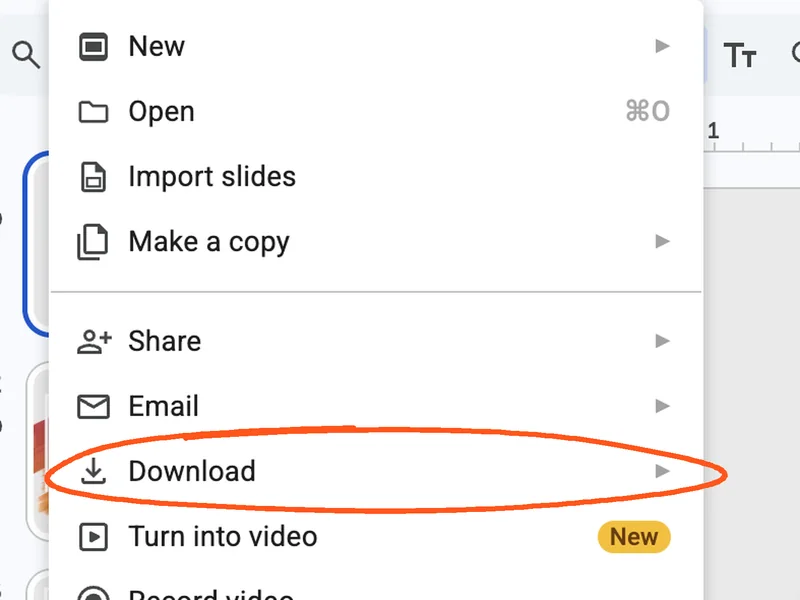
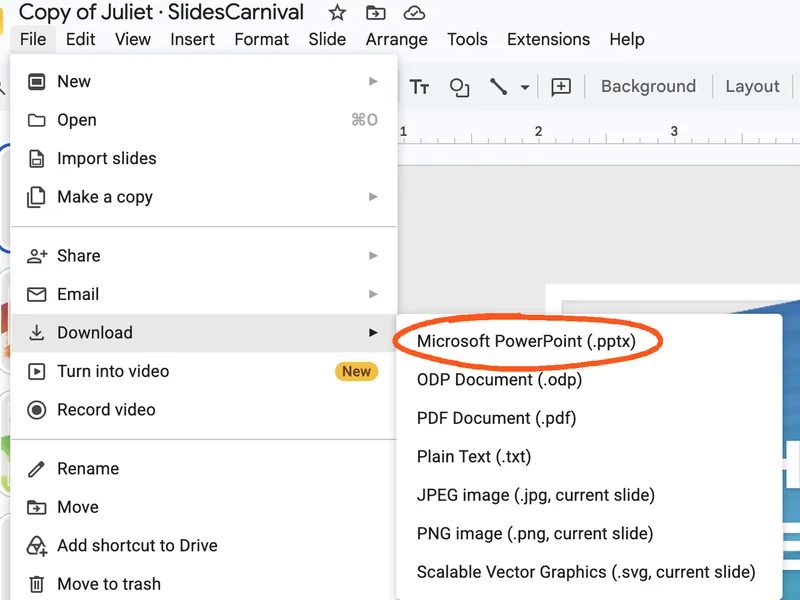
| Google Slides | File, then Download, then Microsoft PowerPoint (.pptx). Your notes and most animations come along. |
| Keynote | File, then Export To, then PowerPoint. Or Export To, then PDF, for the exact look without builds. |
| Pictures | Drop several PNG or JPG files at once, or a .zip of them, and each picture becomes a slide. |
| A deck someone shared | Drop the .json deck file in. You get their slides and points. |
Everything is read inside your browser. Your slides are only uploaded if you sign in, so they're kept in your account.
Animations and transitions
PowerPoint animations play while you present, the way they do in PowerPoint. Each press of Next (or →, or your clicker) shows the next piece of the slide, and only then moves to the next slide. While you talk, the next piece appears once you start talking about it, or when you pause after covering what's showing. Back hides the last piece again.
- What plays: Appear, Fade, Fly In, Wipe, Zoom, Float and similar effects, exits, "after previous" effects, and slide transitions like Fade, Push, Wipe and Zoom. Unusual effects play as a fade.
- Videos show as a still picture, so those slides wait for you to say "next slide".
- Hidden slides are left out, like in PowerPoint.
- Don't want animations? Turn off "Play my slide animations" on the Get ready screen or in Settings.
- Want pieces to show only when you click? In Settings, set "Show the next animation" to "Only when I click or say next".
Canva, PDF and picture decks don't carry animations. They use the app's own transition instead, which you pick on the Get ready screen: Fade, Push, Zoom, Wipe or None. To keep Canva's own animations, present inside Canva with the Chrome extension.
Presenting from Canva (Chrome extension)
The free Onword Chrome extension works inside Canva, Google Slides and PowerPoint Online. It reads the points on the slide that's showing, ticks them off as you talk, and clicks Next once you've covered them and paused. Canva then plays your animations and transitions itself. "Next slide", "go back" and "wait" work too.
- Install it once. Follow the steps on the extension page: download, unzip, open
chrome://extensions, turn on Developer mode, then Load unpacked. - Start it. Open your design, click the Onword button in Chrome's toolbar, then Start listening. Allow the microphone.
- Present. Click Present, then Present full screen, and talk. Click the – on the panel to shrink it to a dot. Option+Shift+H (Alt+Shift+H on Windows) starts and stops it, even in full screen.
The extension doesn't have the app's practice score, captions, phone remote or Q&A mode yet. Practice in the app, then present with the extension.
Writing good points
- Use the words you'll really say. "6 raised beds" works better than "Infrastructure".
- Keep each point short. Three to six words is plenty. You don't need to say it word for word.
- Two to four points per slide feels natural. Delete anything you'll skip.
- Picture slides: press "Describe the picture instead" and write what you'll say about it. It turns that into points.
- Videos or demos: tick "Don't move on by itself" on that slide. It waits until you say "next slide".
- Names and special words: add them in "Names and special words" so captions spell them right.
In English, an AI listener also understands when you say a point in your own words. In other languages it listens for the words in your points, so keep them close to what you'll say.
Voice commands
Say these any time while presenting. Pick your language on the "Check points" screen.
| Language | Next slide | Go back | Stay here |
|---|---|---|---|
| English | "next slide", "moving on" | "go back", "previous slide" | "wait", "hold on", "not yet" |
| Română | "următorul slide", "mai departe" | "înapoi", "slide-ul anterior" | "stai", "așteaptă", "încă nu" |
| Español | "siguiente diapositiva", "pasemos" | "vuelve", "diapositiva anterior" | "espera", "todavía no" |
| Français | "diapositive suivante", "passons" | "revenir", "diapositive précédente" | "attends", "pas encore" |
| Deutsch | "nächste Folie", "machen wir weiter" | "zurück", "vorherige Folie" | "warte", "Moment", "noch nicht" |
| Italiano | "prossima slide", "andiamo avanti" | "torna indietro", "slide precedente" | "aspetta", "non ancora" |
| Português | "próximo slide", "vamos seguir" | "voltar", "slide anterior" | "espera", "ainda não" |
"Wait" works best while the countdown is showing. It keeps you on the slide until you say "next slide".
Jump several slides (English and Română): say "skip 3 slides", "go back 2 slides" or "go to slide 5" ("sari peste 3 slide-uri", "înapoi cu 2 slide-uri", "mergi la slide-ul 5"). In the Chrome extension, "go to slide 5" doesn't work, because it can't see slide numbers, but skipping and going back do.
Settings
Press "Settings" at the top of the app, or in the tools under the slide while presenting (or press S). Changes save by themselves and work right away, even in the middle of a talk. They apply to all your decks. You can also ask the help bot, like "make it move on faster" or "turn on captions", and it changes them for you.
| Setting | What it does |
|---|---|
| Move on by itself | Goes to the next slide once you've covered your points and paused. Turn it off to move only when you press Next or say "next slide". |
| Points to cover before moving on | All of them at first. Lower it if you often leave a point out on purpose. |
| Quiet time before moving on | How long you pause before it starts moving on: 0.5 to 5 seconds, 2.5 at first. Lower is faster. |
| Countdown before moving on | A short countdown after the quiet time, so you can still say "wait". 1.5 seconds at first. 0 turns it off. |
| If it hears talking during the countdown | "Keep counting" (the first choice) ignores all talking once a slide is done, so a busy room or a chatty class can't hold it up. Only saying "wait" stops it. "Start over for a full sentence" waits if anyone says a whole sentence, and "Start over for any talking" waits for any sound at all. Those two suit a quiet room. |
| Play my slide animations | Plays PowerPoint animations piece by piece. Turn it off to show each slide all at once. |
| Show the next animation | "As I start talking about it", or "Only when I click or say next". |
| Show live captions on the slides, and Caption size | Shows what you say along the bottom of the slides, in small, medium or large text. |
| Listen for "next slide", "go back" and "wait" | Turn it off if you say those words in your talk and don't want it to react. |
The app also learns on each slide: pressing "Too soon? Go back" makes it wait longer there, and skipping ahead makes it need fewer points there. To start fresh on a deck, open it, then Settings, and press "Forget what it learned". "Reset to defaults" puts every setting back to how it started.
Keyboard and clickers
| → Space Page Down | Next animation, or next slide |
| ← Page Up | Back one animation, or previous slide |
| B | Blank the audience screen, or show it again |
| W | Hold on this slide, or let it move on again |
| F | Full screen |
| Q | Start or end Q&A mode |
| L | Pause or resume listening |
| S | Open Settings |
| ? | Show the shortcuts |
Most presentation clickers send Page Up and Page Down, so they work too.
Presenting on a projector
- Connect the projector and set it to extend your screen, not mirror it. On a Mac: System Settings, then Displays. On Windows: press Windows + P and choose Extend.
- In the app, press "Present for real". The slides window opens.
- Drag the slides window onto the projector and click inside it to go full screen.
- Keep your laptop on the presenter screen, with your points, timer and what's coming next.
If the slides window doesn't open, your browser blocked the pop-up. Click the blocked pop-up icon at the right end of the address bar and choose "Always allow".
Phone remote
While presenting, press "Phone remote" and scan the code with your phone's camera. Your phone shows your points, the timer and the next slide, with big Next, Back and Hold buttons. Your laptop and phone need internet. They don't have to be on the same Wi-Fi.
Group presentations
On the "Check points" screen, type everyone's names in "Presenters", then pick who presents each slide. During the talk, the app shows whose turn it is, and the recap shows how long each person spoke.
Q&A mode
When questions start, press "Q&A mode" or Q. As people ask, the app jumps to the slide the question is about. Press it again to go back to presenting.
Your practice score
After a practice run you get a score out of 100:
- 60 points for covering your points.
- 20 points for speaking at a comfortable speed, about 100 to 170 words a minute.
- 10 points for few filler words like "um" and "like".
- 10 points for finishing close to your time goal. With no goal set, you get these automatically.
Press "Save as PDF" on the recap to keep a copy or hand it to a teacher.
Saving and sharing decks
Your decks, points, timing and scores save automatically in this browser on this computer. Sign in to keep them in your account too. To give a deck to someone else, open it and press "Share this deck". That saves a small file you can email or upload. They drop it into the app to get the same slides and points.
Your account
Signing in is optional and free. It keeps your decks, practice scores and settings on any computer you sign in on. Press "Sign in" at the top of the app, then "Continue with Google". Decks you made before signing in are added to your account (up to 20 on the free plan). Some school Google accounts are blocked by the school from signing in to outside apps; you can still use everything without an account.
To sign out or delete your account, press your name at the top of the app. Deleting your account removes it and the decks saved in it. Decks on that computer stay.
Pro plan
Everything in the app is free, with no ads. Pro, coming soon, will keep as many decks as you like in your account (the free plan keeps up to 20) and your full practice history, so you can see how you improve over months. See Pricing for the planned price.
Install it and use it offline
In Chrome or Edge, press "Install app" at the top of the app, or the install icon at the right end of the address bar. It opens in its own window, like any other app.
Once you've opened it, the app and your decks open even without internet, and you can move slides with the keyboard or a clicker. Listening needs internet, because your browser's speech service runs online.
Microphone not working?
- Use Chrome or Edge. Safari and Firefox can't listen yet.
- Allow the microphone for the site. Click the icon at the left end of the address bar, find Microphone, and choose Allow. Then reload the page.
- On a Mac, open System Settings, then Privacy & Security, then Microphone, and turn on Google Chrome (or Microsoft Edge). Quit and reopen the browser.
- On Windows, open Settings, then Privacy & security, then Microphone, and turn on microphone access for apps and for your browser.
- Pick the right microphone. In Chrome, open Settings, then Privacy and security, then Site settings, then Microphone, and choose your mic from the list.
- Check your internet. Speech is turned into text online, so listening stops when the connection drops.
Still stuck? You can always type what you'd say in the box under "What I heard", or use the arrow keys.
Contact us
Found a bug, have an idea, or need help with your account or billing? Send a request on the Contact support page. Pick what it's about, tell us what you were doing, which browser you use, and what happened. We usually answer within a few days, right there on the Contact support page and by email. If you're signed in, the app also tells you when we've answered.
You can see your requests and our replies on the Contact support page any time, and write back there. Prefer email? Write to handsfreeclicker.help@gmail.com. A screenshot helps a lot.