NEWFree Chrome extension

Present straight from Canva.

Keep your slides in Canva, Google Slides or PowerPoint Online. Just talk, and the extension clicks to the next slide once you've covered your points. Your animations and transitions play exactly as you made them.

  • Free
  • Keeps your animations
  • Google Chrome or Microsoft Edge
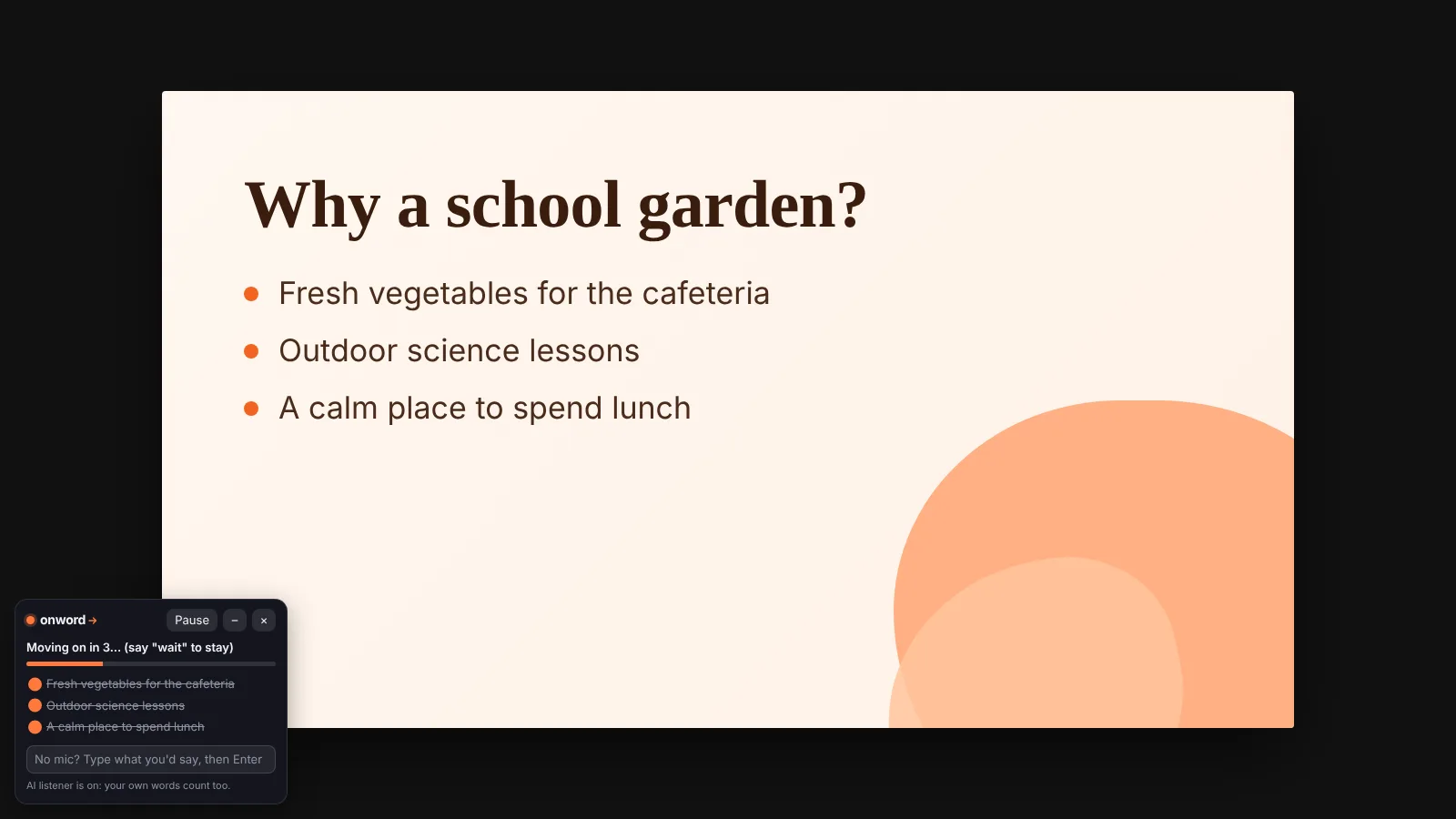
A slide titled 'Why a school garden?' presented full screen. In the corner, the Onword panel shows all three points ticked off and reads 'Moving on in 3… (say wait to stay)'.

How it works

Talk through your slide. It does the clicking.

The same listener as the Onword app, working inside the site where your slides already are.

  1. Start listening

    Open your presentation, click the Onword button in Chrome's toolbar, then click Start listening.

  2. Present

    Click Present in Canva, Google Slides or PowerPoint. A small panel shows the points on the slide and ticks them off as you say them.

  3. It moves on for you

    Once you've covered every point and paused, it counts down and clicks Next. The next animation or slide plays, just like with a clicker.

App or extension?

Two ways to present hands-free

Both listen the same way. Pick the one that fits where your slides are.

Chrome extensionThe app
Your slides stay inCanva, Google Slides or PowerPoint OnlineThe app (you add a PowerPoint, PDF or Canva download)
Canva animationsYes, all of them, because Canva plays themNo, Canva downloads leave them out. You get the app's own transitions
PowerPoint animationsYesYes
"Next slide", "go back", "wait"YesYes
"Skip 3 slides", "go back 2 slides"YesYes, and "go to slide 5"
Practice score, captions, phone remote, Q&ANot yetYes
InstallOne minute, belowNothing to install

Want to practice first? Practice in the app, then present from Canva with the extension.

Install

Set it up in one minute

It's on its way to the Chrome Web Store. Until then, add it to Chrome yourself like this. You only do it once.

  1. Download and unzip it

    Click Download the extension, then double-click the downloaded file. On a Mac that makes a folder called onword-extension. On Windows, right-click the file, choose Extract All, then Extract. Keep the folder somewhere you won't delete it, like Documents.

  2. Open Chrome's extensions page

    Type chrome://extensions in the address bar and press Enter. In Microsoft Edge, type edge://extensions.

  3. Turn on Developer mode

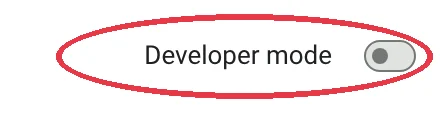
    Click the Developer mode switch at the top right. In Edge it's on the left.

    The top right of Chrome's extensions page, with the Developer mode switch circled
  4. Click Load unpacked

    Click Load unpacked at the top left, pick the onword-extension folder, and click Select.

    The Load unpacked button at the top left of Chrome's extensions page, circled
  5. Check it's there

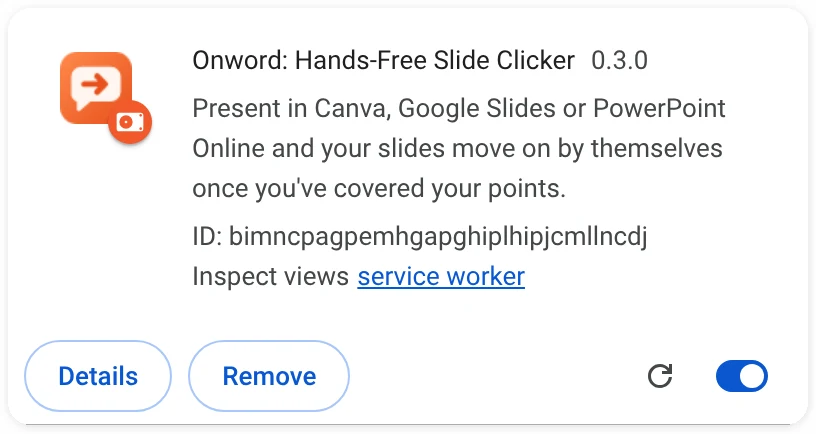
    Onword now shows up in your list of extensions.

    The Onword card on Chrome's extensions page, switched on
  6. Pin it to your toolbar

    Click the puzzle piece to the right of the address bar, then click the pin next to Onword. Its button stays in your toolbar from now on.

Present

Presenting from Canva

  1. Open your design and click Start listening

    Click the Onword button in the toolbar, then Start listening. The first time, Chrome asks to use your microphone. Click Allow.

  2. Click Present, then Present full screen

    The panel in the bottom left corner shows the points on the slide that's showing. Click – to shrink it to a small dot that your audience will hardly notice.

  3. Talk

    Each point ticks off as you say it, in your own words too. When they're all ticked and you pause, it counts down and moves on. Say "wait" to stay, "next slide" to skip ahead, or "go back". To jump, say "skip 3 slides" or "go back 2 slides".

  4. Stop when you're done

    Click × on the panel, or press Option+Shift+H on a Mac (Alt+Shift+H on Windows). The same keys start it, even in full screen.

Google Slides and PowerPoint Online work the same way: open the presentation, click Start listening, then Slideshow or Present.

FAQ

Questions about the extension

Still stuck? Ask the help bot in the corner, or contact support.

Is it free?

Yes, completely.

Why isn't it in the Chrome Web Store?

It's on its way there. Once it's in the store, installing it will take a single click. Until then, the steps above add it to Chrome yourself, and it works just the same.

How does it know what my points are?

It reads the text on the slide that's showing. Each line or bullet becomes a point, and the big title doesn't count. If a slide has no text, like a photo, it moves on once you've talked and paused.

Will my animations still play?

Yes. The extension presses Next the way a clicker does, so Canva, Google Slides or PowerPoint plays every animation and transition itself. When an animation brings in new text, its points are added to the slide.

It doesn't move on. What do I do?

Check that the panel's dot is green, which means it's listening. Then click once on your slides, so the slide show has your keyboard, and say "next slide" to test it. If the microphone is blocked, click the icon at the left of the address bar and set Microphone to Allow.

Can my audience see the panel?

If you share or mirror your screen, yes. Shrink it to a dot with the – button, or switch on "Keep the panel small" in the extension's settings.

Does it work on a school Chromebook?

Only if your school allows extensions you add yourself. Many school Chromebooks turn Developer mode off. Ask your teacher or IT admin, or use the app, which needs no install.

Is it private?

It reads only the slide that's showing, and only after you click Start listening. Nothing is sent to us. Like the app, Chrome sends your voice to its own speech service to turn it into text. The AI that understands your own words runs on your computer. Read the privacy page.
Your Canva deck, hands-free.

Free. Works in Chrome and Edge.